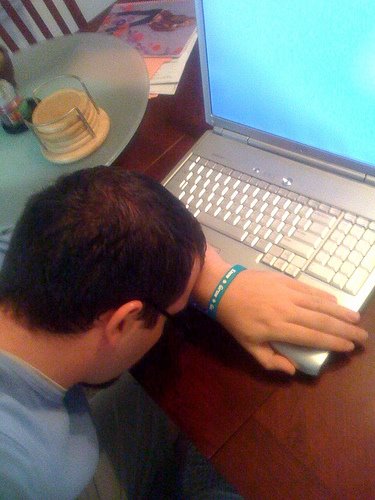
I originally intended to post something in honor of Halloween today, but due to this morning’s event here at home I decided to discuss something truly frightening—Internet hackers! That’s right, we got hacked… Actually, my partner was “hacked,” so far my computer is okay.
A few weeks ago my partner decided to start his own business. Like most people he is starting out with limited funds so he decided to create his website via one of those places that offers free sites complete with hosting, shopping cart, etc. for online stores. He boasted that he could see his visitors’ IP addresses and even the types of computer systems they had. I remember saying something like, “if you can see them, then someone can see you” which, of course, did not translate into “guy speak” and was therefore dismissed.
This morning his Webroot Internet Security software sent him an alert regarding malware; someone had broken through the firewall, changed his security filter to “allow,” and received free access to all his files. What’s really scary is that he can’t reset his own system; he performed a “system restore” to an earlier time but it did not help—the hacker has apparently appointed a sentinel (probably a Trojan virus). My partner’s only option is to wipe his drive and reinstall his entire system. A hassle? Yes! But even worse—what files did the hacker peruse or download if any? Banking information? The password vault? Nightmarish!
Therefore, I thought it might be helpful for all of us to review/share some safety tips:
Know Your Magical Words
Your computer, your router, and just about everything has a password—use them. I heard that most people never change the default passwords in their systems. If you’ve left your password at “Admin”—change it today!
While we’re on the topic of passwords, please don’t use the same password for everything. You can bet that once the hacker learns a magic word it will be the first word he tries at the next locked door.
Proceed with Caution
We all do it—we’re cruising along on the Internet and come across a detour on some website, a game or some other fun temptation--Do Not Enter! If it is really so interesting then open another window and run a search for the company or program. Make sure the site or download is virus free and find out what personal data is collected and how that information is used. Remember, everyone is handing out cookies and they might be more “trick” than “treat.”
Never Stand Alone
Don’t leave your Internet at idle for long periods of time, this allows time for hackers to be mischievous. If you are going to be away from the computer for any length of time shut down your system, disconnect your internet, or run a program such as a virus scan.
Be Able to Defend Yourself
I highly recommend having multiple firewalls and multiple anti spyware/virus software systems—what one system doesn’t catch the next one probably will. On my PC I have Webroot Internet Security Complete, ThreatFire, and Ad-Aware. (Ad-Aware and ThreatFire have free versions available for download.) There are many anti-virus and anti-spyware packages available though so find one that suits your needs and is compatible with your system.
Plan “B”
Always have a current back-up of your entire system just-in-case. I back-up to an external hard drive with Acronis, some people prefer online back-up plans like Carbonite. If you end up in a situation like my friend—having to wipe the entire drive—you will be thankful to have one.
The Internet is a wonderful tool—a gateway into new places. Stay alert and practice a routine cleansing ritual and you will be safe from those creepy, lurking hackers.
post and image by Robyn Chausse
Share! Treat us to your tricks for a safe and sane Internet adventure…
A few weeks ago my partner decided to start his own business. Like most people he is starting out with limited funds so he decided to create his website via one of those places that offers free sites complete with hosting, shopping cart, etc. for online stores. He boasted that he could see his visitors’ IP addresses and even the types of computer systems they had. I remember saying something like, “if you can see them, then someone can see you” which, of course, did not translate into “guy speak” and was therefore dismissed.
This morning his Webroot Internet Security software sent him an alert regarding malware; someone had broken through the firewall, changed his security filter to “allow,” and received free access to all his files. What’s really scary is that he can’t reset his own system; he performed a “system restore” to an earlier time but it did not help—the hacker has apparently appointed a sentinel (probably a Trojan virus). My partner’s only option is to wipe his drive and reinstall his entire system. A hassle? Yes! But even worse—what files did the hacker peruse or download if any? Banking information? The password vault? Nightmarish!
Therefore, I thought it might be helpful for all of us to review/share some safety tips:
Know Your Magical Words
Your computer, your router, and just about everything has a password—use them. I heard that most people never change the default passwords in their systems. If you’ve left your password at “Admin”—change it today!
While we’re on the topic of passwords, please don’t use the same password for everything. You can bet that once the hacker learns a magic word it will be the first word he tries at the next locked door.
Proceed with Caution
We all do it—we’re cruising along on the Internet and come across a detour on some website, a game or some other fun temptation--Do Not Enter! If it is really so interesting then open another window and run a search for the company or program. Make sure the site or download is virus free and find out what personal data is collected and how that information is used. Remember, everyone is handing out cookies and they might be more “trick” than “treat.”
Never Stand Alone
Don’t leave your Internet at idle for long periods of time, this allows time for hackers to be mischievous. If you are going to be away from the computer for any length of time shut down your system, disconnect your internet, or run a program such as a virus scan.
Be Able to Defend Yourself
I highly recommend having multiple firewalls and multiple anti spyware/virus software systems—what one system doesn’t catch the next one probably will. On my PC I have Webroot Internet Security Complete, ThreatFire, and Ad-Aware. (Ad-Aware and ThreatFire have free versions available for download.) There are many anti-virus and anti-spyware packages available though so find one that suits your needs and is compatible with your system.
Plan “B”
Always have a current back-up of your entire system just-in-case. I back-up to an external hard drive with Acronis, some people prefer online back-up plans like Carbonite. If you end up in a situation like my friend—having to wipe the entire drive—you will be thankful to have one.
The Internet is a wonderful tool—a gateway into new places. Stay alert and practice a routine cleansing ritual and you will be safe from those creepy, lurking hackers.
post and image by Robyn Chausse
Share! Treat us to your tricks for a safe and sane Internet adventure…